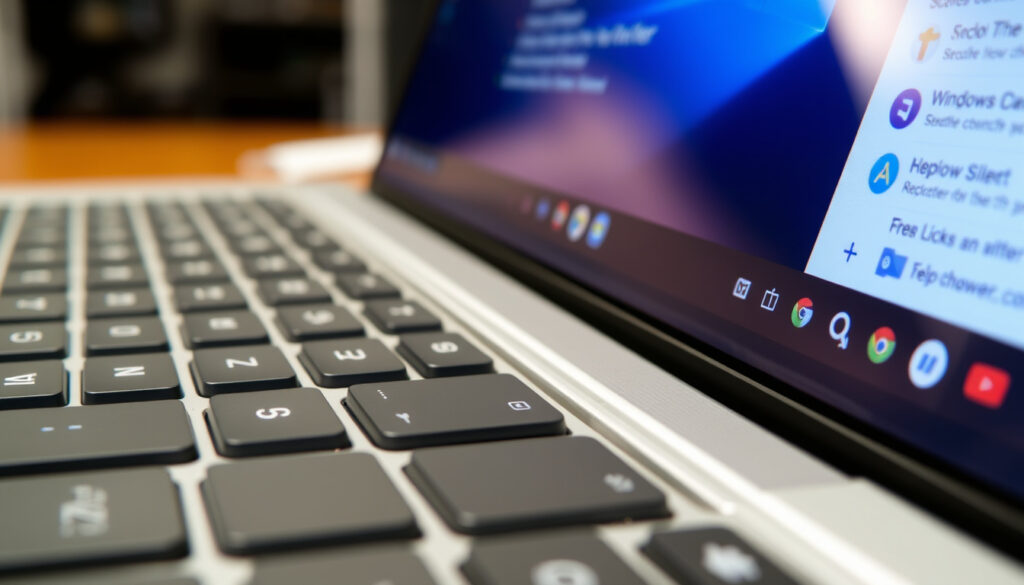
How to Screenshot on Chromebook: Keyboard Shortcuts
You know that moment when you need to capture something on your Chromebook screen — a confirmation number, a funny meme, a tricky error message — and you fumble around the keyboard hoping something works? If that sounds familiar, you’re not alone. Taking a screenshot on a Chromebook is straightforward once you know which keys to press, and it works the same across HP, Lenovo, Samsung, and other brands.
Full screenshot shortcut: Ctrl + Show Windows ·
Partial screenshot shortcut: Shift + Ctrl + Show Windows ·
Screen recording shortcut: Shift + Ctrl + Show Windows (select record) ·
Screenshot key location: Top row, F5 key (Show Windows) ·
Default screenshot format: PNG ·
Screenshot saved to: Downloads folder
Quick snapshot
- Full screen: Press Ctrl + Show Windows (Google Help: Chromebook keyboard shortcuts)
- Partial: Press Shift + Ctrl + Show Windows, then drag to select (Google Help)
- Shift+Ctrl+Show Windows opens the screen capture tool for partial captures and recording (Google Help)
- The key label varies by brand — it may say “Show Windows,” “F5,” or show only a rectangle icon (Google Help)
- Some older Chromebook models may have slightly different key locations or require alternate shortcuts (Google Help)
- Default save location is Downloads folder, but may vary by configuration or device settings (Google Help)
- Google keeps updating ChromeOS screenshot tools — screen recording was added in recent versions (Google Help: Take a screenshot or record your screen)
- Use the built-in Gallery app or Google Photos to crop and edit screenshots after capture (Google Help)
The key facts in this guide are summarized in the table below.
| Chromebook screenshot shortcut | Ctrl+Show Windows |
| Default image format | PNG |
| Save location | Downloads folder |
| Screen recording format | WebM |
How do I take a screenshot in Chromebook?
Chromebooks offer two primary keyboard shortcuts that work on any ChromeOS device, regardless of brand. For a full-screen capture, press Ctrl + Show Windows. The screen will flash briefly, and the screenshot is saved as a PNG file in your Downloads folder (Google Help: Chromebook keyboard shortcuts).
For a partial screenshot, press Shift + Ctrl + Show Windows. Your cursor becomes a crosshair — drag to select the area you want (Google Help). The saved image lands right in your Downloads folder, ready to use.
These two shortcuts cover 99% of your screenshot needs. No extra tools, no hunting for a print screen key — just two combos that work every time.
The implication: Once you learn these, you’ll never fumble for the right key again. The shortcuts are consistent across all Chromebooks running ChromeOS, from Google’s official documentation to brand-specific guides from ASUS Support.
How do I take a screenshot on a Chromebook without a Windows key?
Unlike many Windows laptops, Chromebooks don’t have a dedicated Windows key. Instead, the function row includes the Show Windows key — a square with two vertical lines (or the F5 key). That key replaces the Windows key in every screenshot shortcut (Google Help).
The same two shortcuts apply: Ctrl + Show Windows for full screen, Shift + Ctrl + Show Windows for partial. On external keyboards that lack a Show Windows key, ChromeOS maps the shortcut to Ctrl + Shift + F5 (Google Help: Take a screenshot or record your screen).
If you’re switching from a Windows PC, you don’t need a Print Screen key. Chromebooks are designed around ChromeOS, and the Show Windows key is your gateway to screenshots — even on keyboards that look different.
The trade-off: You lose the dedicated Print Screen key, but you gain a screen capture toolbar that also handles recording. It’s a net win once you adjust.
What does the screenshot key on a Chromebook look like?
On most Chromebooks, the key is located in the top row, usually at the F5 position (Google Help). It might be labeled:
- A rectangular icon with two vertical lines — this is the Show Windows symbol
- The text “F5” if the key lacks a dedicated icon
- Or simply the word “Show windows” on some HP, Lenovo, and Samsung models
If you’re using a Chromebook tablet or convertible, the physical key may be missing. In that case, press Power + Volume Down simultaneously (Google Help). This method works on devices like the Lenovo Duet and HP Chromebook x2.
The pattern is simple: the key is always the one that switches between virtual desktops. Once you identify it, you’ve found your screenshot key.
How to screenshot without Ctrl+Shift+S?
The shortcut Ctrl+Shift+S is not a standard ChromeOS screenshot command. The correct combos are Ctrl+Show Windows (full screen) and Shift+Ctrl+Show Windows (partial). If you’re coming from Windows or Linux, that muscle memory won’t transfer (Google Help).
If you prefer not to use keyboard shortcuts, Chromebooks offer a screen capture toolbar through the Quick Settings panel. Click the time area at the bottom right, then select the Screen Capture icon (a camera or rectangle). This opens the same toolbar with options for full screen, partial, window capture, and screen recording (Google Help: Take a screenshot or record your screen).
The catch for tablet mode: On a Chromebook tablet, the Quick Settings method is the most reliable. Tap the time menu, then the screen capture icon. No physical keys required.
How to crop a screenshot on Chromebook?
Chromebooks save screenshots as uncropped PNG files. To crop, open the screenshot in the built-in Gallery app — it appears automatically after you take a screenshot via a notification. From the Gallery toolbar, select the crop tool and adjust the frame (Google Help).
Alternatively, you can upload the image to Google Photos and use its online editor for cropping, adjustments, and filters. Both methods are free and do not require third-party apps.
Screenshots are saved at full screen resolution. Cropping doesn’t reduce the file size significantly; if storage is tight, use the Gallery app’s “Export” option to compress.
For Chromebook users who often take and share screenshots, learning to crop in Gallery saves time — no need to open a separate editor or move files to another device.
How to Take a Screenshot on Chromebook: Step by Step
- Identify the Show Windows key — look on the top row for a rectangle with two vertical lines (or F5).
- For a full-screen screenshot: Press Ctrl + Show Windows simultaneously. The screen flashes; your screenshot is saved.
- For a partial screenshot: Press Shift + Ctrl + Show Windows. Your cursor turns into a crosshair. Click and drag to select the area, then release.
- To capture a specific window: Press Shift + Ctrl + Show Windows, then on the toolbar that appears, click the window icon. Click on the window you want to capture.
- To record your screen: Press Shift + Ctrl + Show Windows, then click the record button (circle icon) on the toolbar. Choose between full screen, partial, or window recording (Google Help: Take a screenshot or record your screen).
- Access your screenshot: Open the notification that appears after capture, or navigate to the Downloads folder in the Files app. Screenshots are named “Screenshot YYYY-MM-DD at HH.MM.SS.png”.
- Crop or edit: Double-click the screenshot to open in the Gallery app, then use the crop tool. For more advanced edits, upload to Google Photos.
Sticking to these steps ensures you never lose a capture. Even if the key looks different on your HP or Lenovo model, the procedure is identical across ChromeOS.
What’s Confirmed vs. What’s Still Unclear
Confirmed facts
- Ctrl+Show Windows works on all Chromebooks for full screenshots (Google Help)
- Shift+Ctrl+Show Windows opens the screen capture tool for partial captures and recording (Google Help)
What’s unclear
- Exact key label varies by Chromebook brand (e.g., “Show Windows”, “F5”, or a rectangle icon) (Google Help)
- Some older Chromebook models may have different key locations or require different shortcuts
- Screenshots save to the Downloads folder by default, but some configurations may allow custom save locations (Google Help)
The pattern: The core shortcuts are universal, but the physical key label and default save behavior can shift depending on the device model and ChromeOS version.
What Experts Say
“Press Shift + Ctrl + Show windows to open screen capture tool.”
— Google Help: Take a screenshot or record your screen, the official ChromeOS documentation
“Shift + Ctrl + Show windows opens the screenshot menu for selected-window screenshots or screen recording.”
— Android Police: Chromebook keyboard shortcuts, a trusted Android news outlet
Both official and third-party sources agree on the same shortcuts. The consistency across Google’s own help and independent tech media lends confidence to the advice.
Summary: What This Means for Chromebook Users
Chromebook users now have a clear playbook: Ctrl + Show Windows for full screen, Shift + Ctrl + Show Windows for partial captures and recording. When the physical key is missing or labeled oddly, the Quick Settings panel or Power + Volume Down (on tablets) fills the gap. For anyone using a Chromebook from HP, Lenovo, Samsung, or Acer, the consequence is consistent: you can capture anything on screen without third-party software. The choice is clear: learn these two shortcuts, or keep hunting for a key that doesn’t exist.
youtube.com, reddit.com, support.google.com, youtube.com, youtube.com, youtube.com, youtube.com, facebook.com, reddit.com
Frequently asked questions
What is the shortcut for screenshot in Chrome?
The shortcut is Ctrl + Show Windows for full screen and Shift + Ctrl + Show Windows for a partial screenshot (Google Help).
Is it Ctrl+Shift+S to screenshot?
No. ChromeOS does not use Ctrl+Shift+S for screenshots. The correct combo involves the Show Windows key (Google Help).
How do I take a picture on a school Chromebook?
School Chromebooks run ChromeOS, so the same shortcuts apply: Ctrl+Show Windows for full screen, or Shift+Ctrl+Show Windows for partial. Many school devices disable the camera, but screenshots always work.
What does Ctrl+Alt+T do on a Chromebook?
Ctrl+Alt+T opens the ChromeOS terminal (crosh). It is not related to screenshots (Google Help).
How to screenshot on Chromebook HP?
On HP Chromebooks, the same ChromeOS shortcuts work: Ctrl+Show Windows (or F5) for full screen, Shift+Ctrl+Show Windows for partial. HP keyboards follow the standard Chromebook layout (Google Help).
How to screenshot on Chromebook Lenovo?
Lenovo Chromebooks (e.g., Lenovo Duet) use the same shortcuts. On tablet mode, press Power + Volume Down simultaneously (Google Help).
Related reading
- How to Do a Factory Reset on Android — another step-by-step device guide for when you need a fresh start on your smartphone.
- How to Clean a Dishwasher — an appliance maintenance guide that pairs well with your device care routine.
More related posts
 สล็อต bikeadvisorpro.com best: Meaning & Google Results
 The Let Them Theory Book: Summary, Criticism, and Psychology
 Braga vs Nottingham Forest: Prediction, TV Guide & Fan Info
 Cork Airport Arrivals Today – Check Live Flight Status & Delays
 Cast of Warfare (2025 Film): Actors, Roles & Director
 Houses for Sale Newbridge | 46 Daft.ie, 85 MyHome.ie
 Ipswich Town vs Nottm Forest: Head-to-Head Record & Rivalries
 Fast and Furious 9: Hit or Flop? Netflix, Cast & Paul Walker Tribute
